How to combat email deliverability issues

This article dives into some detail about combatting regular email deliverability issues.

Technical Level: 5 out of 5
Read time: 5 mins
Who should read this?: Any Keap user responsible for optimising Keap mailing list quality, and in particular IT members / sub-contractors.

Two common issues

Here are two common issues that stem from your domain having an uncertain email reputation.

Emails are occasionally bounced automatically

Some email services are renowned for employing over-sensitive spam filters. Bigpond and Hotmail are two email services that come to mind.

These spam filters can reject some emails from being delivered entirely, if they are unsure about your email reputation. This is obviously far worse than placing emails into spam folders.

Firstly, the recipient will never see your email – not even in their spam / junk folder.

Second, the recipient’s email address status will now be set to ‘Bounced’ in Keap – permanently – until you reactivate it.

Subscribers are occasionally unsubscribed automatically

To comply with legal requirements, all email marketing services like Keap include unsubscribe links in the footer of each message.

Some email service spam filters click all links in a message to check that the links do not contain malware, if they are not sure about your email reputation.

On occasions, spam filters even click the unsubscribe link in messages. As a result, contacts are sometimes unsubscribed without their knowledge.


How to monitor unsubscribes and bounces

Read our how to proactively manage email status issues article and watch the video. This details an important process to follow regularly, to try and catch any accidental unsubscribes or bounces from contacts.

It is a difficult process as there is no foolproof way of knowing which unsubscribes and bounces are valid and which ones are errors. Typically, review each long-time client or contact who unsubscribes.


What to do to help maximise your email reputation

The sad news is there is no fool-proof way to avoid accidental unsubscribes, temporary bounces or your emails landing in spam folders. But there are ways to significantly reduce those issues.

  • Configure DKIM, SPF and DMARC
  • Optimise your email content
  • Configure an Email Preference Centre
  • Ask your recipients to whitelist you

Configure DKIM, SPF and DMARC

There are technical actions to undertake. DKIM, SPF and DMARC are essentially records added to your domain that increases the security of your domain and increases your email reputation in many recipient email servers. This means spam filters are less likely to need to click all links to test them.

Read our article How to enable Keap outbound emails for more information.

Optimise your email content

Optimising your email content to maximise deliverability and open rates, is not an exact science. But there are certainly good practices to follow.

Read our top 10 tips to maximise open rates.

Configure an Email Preference Centre

An email preference centre is essentially a web form or landing page that allows your contacts to opt in, or out of, certain types of email content you are sending. Links to the email preference centre should be included in every email broadcast you send.

Even if contacts opt out of all content options, that very action of clicking in to update their email preferences is an ‘engagement’ with your emails, which aids your email reputation.

We can help you configure an email preference centre and detail how to share it to all recipients.

Ask subscribers to whitelist / allowlist you

Below you’ll find step-by-step instructions for your contacts to whitelist your sender email address, in the most common email clients and providers. 

Yes, this is difficult to get your mailing subscribers to do. But it greatly helps if they do.

We recommend each recipient performs their own search on how to add safe senders on their email client/email host service. However, the below can provide a guide for them.

Apple iPhone / iPad

  1. Open the email.
  2. Tap the sender’s name in the From line.
  3. On the next screen, tap Create New Contact.
  4. Tap Done.

Microsoft Outlook 2013

  1. Right-click on the email that you would like to add to your safe sender list
  2. Hover over Junk and then click the option Never Block Sender.

Microsoft Outlook Express

  1. In Outlook, go to the Tools menu.
  2. Click “Address Book”.
  3. Click New > New Contact from the drop-down menu.
  4. Type in email address and include any details you want.
  5. Click OK.

Android

  1. Tap to open the email.
  2. Tap the icon next to the email address.
  3. Tap OK.

Apple Mail

  1. Right-click on the sender’s email address.
  2. Select Add to Contacts or Add to VIPs.

Gmail

  1. Click and drag the email into the Primary tab. Or find an email in the spam folder and mark as Not Spam
  2. Click Yes to confirm

Outlook.com / Hotmail

  1. Open the email.
  2. Click the Add to contacts link

Yahoo! Mail

  1. Right-click the email.
  2. Select Add Sender to Contacts.
  3. Click Save.

Bigpond

  1. Login to Bigpond mail in your browser
  2. On the left, right under SETTINGS, click on “Mail” and then click on “Safe Senders”.
  3. On the Safe Senders sub-menu, please write @<yourdomain> in the blank square next to Add email address, and click on the (+) Add button.

Proactively manage email status issues

Your email open rates depend heavily on your email sender reputation. To maintain healthy open rates, it is critical to regularly clean your email database and stop attempting to email to bounced, unsubscribed or unengaged contacts.

Technical Level: 4 out of 5. 
Who should read this?: Any Keap user responsible for optimising Keap mailing list quality.

Before reading this article, please ensure you have read About email status and manually editing status.

The Importance of Proactively Managinge Email Statuses

Attempting to email Bounced, Unsubscribed or Unengaged email addresses will:

a) reduce the value of your email performance statistics; and

b) affect your email sender reputation and therefore open rates across your whole contact list (spam filters don’t like it when you keep trying to email a bounced, unsubscribed or unengaged contact – it’s not trustworthy)

It’s therefore important to proactively manage email statuses and take action.

How to Proactively Manage Email Statuses

In your Keap app we have configured several reports to manage email status issues easily and regularly.

Perform this process weekly or at least monthly. It will only take 5 minutes or so once you are in a regular cycle. It’s vital to maintain a good email sender reputation, and therefore open rates and email marketing effectiveness.

Go to REPORTS > EMAIL STATUS SEARCH (or REPORTS > EMAIL ENGAGEMENT TRACKER in some Keap Pro versions).

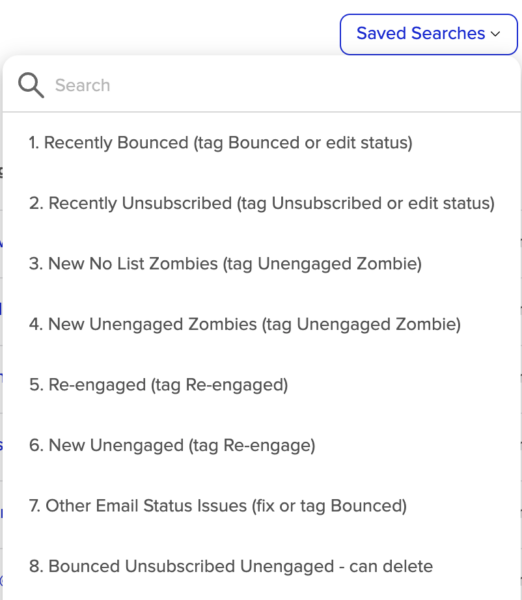
In this report, review the 8 SAVED SEARCHES, following the process to apply the appropriate tags.

1. Recently Bounced – manually edit status if it was a temporary glitch, or apply the ‘Status > Bounced‘ tag to exclude the contact in your future email audiences. This tag will set all your custom mailing list contact fields to NO (e.g. List: News, List: Ownership) to remove the bounced contact from your email audience.

2. Recently Unsubscribed – manually edit the status if it was a mistake, or apply the ‘Status > Unsubscribed‘ tag to exclude the contact in your email audience. This tag will set all your custom mailing list contact fields to NO (e.g. List: News, List: Ownership) to remove the unsubscribed contact from your email audience.

3. New No List Zombies – these are contacts who have declined to receive any emails via your email preference centre (landing page). They have not unsubscribed, but that have effectively opted out of all types of emails. Apply the ‘Status > Unengaged Zombie‘ tag. This tag will set all your custom mailing list contact fields to NO (e.g. List: News, List: Ownership) to remove the unengaged contact from your email audience.

6. New Unengaged – these are contacts who have not opened an email in more than 3 months. Apply the ‘Status > Re-engage‘ tag. This tag will send a short, text-only email to the unengaged contact. The email is deliberately simple to help avoid spam filters. The email requests the contact to confirm their email preferences via a link to a landing page. The contact’s simple action of opening this email (and even better, clicking the link) will reset the email status to its original state (Confirmed or Unconfirmed) and help future emails land in their inbox.

7. Other email status issues – manually edit the email address if a clear error (e.g. mistyped), or update contact fields to exclude the contact in your email audience. In some cases, the email address simply cannot be sent to (e.g. restricted domain), in which case, apply the ‘Status > Bounced‘ tag.

8. Bounced Unsubscribed Unengaged – can delete – these contacts have been identified as Bounced, Unsubscribed or Unengaged email addresses by you applying those relevant tags. They also have not engaged with any of your emails in more than 12 months. So could consider deleting them from your Keap app if you wish to keep your contact list size to a minimum and save cost.

Note that we skipped over reports 4 and 5. These two reports will show 0 contacts the first time you perform this email status review process. But after running this process once, contacts may start to appear in these two reports.

4. New Unengaged Zombies – these contacts were sent a re-engagement email previously when you applied the ‘Re-engage’ tag. But they still have not opened that email or any other email. you should stop trying to email these contacts now as continuing to email them hurts your sender reputation and could impact open rates of across all other contacts. Apply the ‘Status > Unengaged Zombie‘ tag. This tag will set all your custom mailing list contact fields to NO (e.g. List: News, List: Ownership) to remove the unengaged contact from your email audience.

5. Re-engaged – these contacts were sent a re-engagement email previously when you applied the ‘Re-engage’ tag. They have opened that email (or any other email), which is great. Apply the ‘Status > Re-engaged‘ tag now to continue including these contacts in your future email audiences.

About email status and manually editing status

It is vitally important to understand the status of each contact’s email addresses in your Keap database. Sometimes, you may also need to manually edit an email status.

Technical Level: 2 out of 5. 
Who should read this?: Any Keap user responsible for optimising Keap mailing list quality.

Email Status Explained

Keap assigns an Email Status to each email address in your contact list. Familiarise yourself with this list as you will encounter most of them in your Keap account.

Email StatusMeaning
Unconfirmed (single opt-in)This is the default status and indicates you have permission to send email marketing to the contact.
Confirmed
(double opt-in)
You have sent the contact an Email Confirmation Request in an automation. The contact has clicked the link to confirm they want to receive marketing emails. Doing this greatly helps your emails land in your contact’s email inbox.
List UnsubscribeThe contact has unsubscribed from all your email marketing via an unsubscribe option that appears at the top of the email for some email service providers to make it easier for their customers to opt out of unwanted emails. You can send individual emails to these email addresses via the contact record but cannot send any broadcast or automation emails to them.
Unsubscribed (Opt-Out: Manual)The contact has unsubscribed from all your email marketing via an unsubscribe option that appears at the bottom of every email sent by Keap.
BouncedThe email no longer exists or it ‘soft bounced’ too many times. For more information on bounced email status, click here.
Provide Feedback This status indicates that the recipient reported your email as SPAM directly to their internet service provider. Each contact that performs this action, hurts your email sender reputation.
Reports SPAMThe contact reported your email as SPAM via the unsubscribe feedback form, after clicking the unsubscribe link at the bottom of the email. This method of reporting SPAM does not hurt your email sender reputation as much.
Unengaged MarketableThis email status is automatically applied to any email address that has not engaged with your marketing emails in the last 6 months.  Specifically, the status will be applied automatically by Keap when within the last 6 months all of the following are true:
a. the contact has existed for at least 6 months
b. the contact has not opened an email
b. the contact has not clicked a link in an email

A contact with this email status will not be sent any broadcast or automated email from Keap. Keap’s policy of automating this email status is not configurable. It is consistent with some other email marketing platforms (but not all), and it is designed to ensure your overall email reputation is not negatively impacted when contacts are not engaging with your emails.

This means we must make regular effort to re-engage contacts well before the 6 month point of becoming unengaged.

Note: We can send an automated double-opt in email confirmation request using Keap Automations. We configure this for you. Just apply the Actions > Re-engage tag to any contact and an email will be sent to a contact in this Unengaged Marketable status, requesting them to confirm they are willing to receive your emails. The contact must click to link “Yes, I want to receive emails” for the email status to be reactivated.
Invalid emailThe Invalid status indicates the email address is missing characteristics of a valid email address (e.g. an @ symbol, .com/.net/.org, etc.)
Opt Out: SystemKeap’s automated email scanning service detects an email address as being non-deliverable. This may be flagged because an email address has an invalid syntax or is on an internal ‘restricted’ list. These restricted lists contain email addresses and domains that Keap cannot send to (eg. some organisations and especially government and military email domains do not allow any email to enter their network from Email Marketing platforms). A reason as to why the address is opted out is also provided.
Non-MarketableThis is an email status that prevents your Keap app from emailing the contact. It is typically a result of incorrectly adding or importing new contacts and not selecting that you have permission to email the contact.
Unengaged Non-MarketableContacts who have not engaged with one of your emails in more than 6 months, are assigned this status. These contacts will no longer be eligible to send emails to unless they engage with an email they’ve already received from you. It’s critical to re-engage contacts well before they reach 6 months of unengagement.

Manually Edit a Contact’s Email Status

There are a few circumstances when an email status needs changing or correcting. For example:

  • a contact has unsubscribed and their email status is now ‘Unsubscribed’, but would now like to resubscribe; or
  • a contact’s email address is marked as ‘Hard Bounce’ but it was a temporary issue and you now need to reactivate the email address to Keap can start emailing the contact again; or
  • a contact requests you to remove them from your mailing list for good (and they have not clicked the Unsubscribe link in any of your emails).

I’d love to tell you can you easily edit a contact’s email status on their contact record, but you can’t. You need to navigate to REPORTS > EMAIL STATUS SEARCH (or EMAIL ENGAGEMENT TRACKER in some Keap versions).

Search for the contact name or email address using the search fields. Then click EDIT in the Manage Status column.

You can:

  • mark the email address as valid; or
  • manually opt-out this email address.

Note: When marking an email address as valid, we also recommend sending an email confirmation request. When contacts click that link to confirm their email address, their email status moves from Unconfirmed to Confirmed. This will help improve deliverability of your emails to this contact, and help avoid the spam folder.

Please also review our article detailing how to Manage email status issues

10 tips to avoid spam filters in your email marketing

By following a few key principles when building your email broadcasts, you can build trust with your subscribers and the email inbox services they use. This trust helps you achieve better results from email marketing campaigns.

Technical Level: 3 out of 5. 
Who should read this?: Any Keap user drafting email broadcasts.

Did you know there is a difference between Email Deliverability and Email Inbox Placement? These two terms often get merged into one. But there is a difference.

  • Email Deliverability is the rate that your emails are successfully delivered to your recipients’ email servers. Step 1 in the process.
  • Email Inbox Placement is the rate that your emails land in recipients’ inboxes, as opposed to spam / junk folders. Step 2 in the process.

Obviously spam filters determine which emails are allowed to land into inboxes. As the sender of email marketing, you have no idea whether your emails land in inboxes or spam / junk folders.

Spam filters can also sometimes stop your emails in their tracks at step 1 and not even deliver your emails. In Keap, you may sometimes see this as a reason for an email being bounced. Keap sometimes provides reasons such as “Restricted Email Address” or “Known Spammer” or “Suspected Spam”.

A quick internet search will provide hundreds of articles helping you design your email broadcasts and optimise the content to avoid these spam filters. Do some research, however here are our Top 10 Tips to avoid spam filters.


1. Maintain a quality email list

The first step in avoiding spam filters is to build a quality email list. This means only collecting email addresses from people who have explicitly given you permission to do so. 

Avoid purchasing email lists or using third-party data sources, as they often contain outdated or inactive email addresses. That can trigger spam filters for your entire email audience, not just the contacts with inactive email addresses.

Instead, use opt-in forms to collect email addresses from interested subscribers and new clients, and include a check box for the contact to explicitly agree to your email marketing.

Stop emailing contacts who are unengaged (have not opened any of your emails for 3 months). Emailing contacts who are clearly not opening your emails is the quickest way for your email reputation to suffer. This can affect all of your sent emails.

Re-engage each unengaged contact with a simple, polite, but engaging email. Ensure that email is predominantly text, as if you have written it personally. Many email marketing platforms, such as Keap, provide automation to do this. The simple act of the contact opening that email will update their email status and slowly help the health of your whole database.

2. Use ‘Double Opt In’ processes

When a subscriber subscribes to your mailing list, automate a request for the contact to confirm their email address via the appropriate link in your email marketing solution. This gives two benefits. 

First, it builds trust between your email domain and your new contact’s email service. It effectively tells spam filters you are ‘trusted’.

Second, the new contact is likely to receive that email immediately and open the email as they are on their computer or device right at that moment. This immediate engagement with your email aids your email reputation (ie. higher engagement rates). 

3. Craft engaging and relevant subject lines

The subject line is the first thing that subscribers see when they receive your email. It can determine whether they open it or not.

To avoid spam filters, ensure that your subject lines are engaging, specific and not misleading.

Avoid using promotional language, all uppercase words, excessive punctuation and emojis. These are common triggers for spam filters.

4. Use a personalised and consistent sender name

Using a consistent sender name and email address can help improve your email deliverability. Make sure that your sender name is recognisable and relevant to your brand or business.

You can personalise your sender name, such as using the name of a specific team member or department, to make your emails more personal and trustworthy – but only if the recipients are likely to recognise that sender name.

Using your company name as the Sender Name is fine, but ensure consistency in the sending email address. Ensure recipients will identify that email address easily (e.g. racing@<yourdomain>).

5. Avoid spammy wording, phrases and tone

The content of your email can also impact whether it ends up in the spam folder or not. 

Avoid including spam trigger words or phrases. There are hundreds to avoid, and a quick google will provide a longer list. But here are some to avoid:

“free”, “act now”, “act fast”, “earn money”, “work from home”, “download”, “buy now”, “order now”, “order here”, “click here”, “investment”, “congratulations”, “bonus”, “limited offer”, “this isn’t a scam”

Basically any phrase that encourages immediate or urgent action, spam filters often do not like. Modern spam filters don’t just scan for trigger words, they analyse tone and formatting. Emails that sound or look overly promotional “salesy” are more likely to be flagged as bulk marketing.

Avoid dollar amounts too. If you really need to include dollar amounts, try the format “AUD100k” instead of “$100,000”.

In summary, emails that feel like genuine one-to-one communication using natural language, personalisation and clear value, are more likely to land in the inbox and be opened. Writing like a human, not a broadcast advertiser, helps build trust with both recipients and email algorithms.

Some email programs (such as Keap) provide spam warnings as you are drafting your emails. Take note of these warnings.

6. Optimise your email calls to action (CTA) and links

Include a clear call-to-action (CTA) that encourages recipients to take action. However, don’t overload your email with too many CTAs. One or two is ideal and use buttons sparingly.

If you need to share more than one link, include URL links instead (ie. hyperlink words or phrases). Keep it simple and relevant, and avoid using “click here”.

On the subject of links, keep your total links in an email to under five. This includes button links, image links, video links and word/phrase links. Too many links can attract the attention of spam filters which actually click all those links to ‘test’ them for authenticity.

This also suggests it is best to not include multiple links to your social media. It is common to include small button images that link to your twitter, facebook, instagram, linked in accounts. However each of those are a link – and can look spammy to spam filters.

Wherever possible, link to your own website (your own domain that matches the domain of your email address) and avoid linking to short URLs such as bit.ly etc. When spam filters click your links to test them, the checks identify that you are linking to the same domain as your sender email domain. It reinforces authenticity.

7. Optimise your email design

Use a clear and concise writing style, with no excessive formatting, font or colour changes. Also minimise words in all capital letters (uppercase), and avoid exclamation marks.

More often than not, keep your email background white. A coloured background should be used sparingly. They can be appealing in the right circumstances for the right promotions, but ensure your engagement (open and click) rates are already strong.

If your email contains a high percentage of text, as opposed to images, left align the email. Centre-aligned emails can be more visually appealing in some circumstances,. However, they are more likely to be noticed by spam filters. So mix it up a little over time and monitor the results.

Similarly, minimise the number of images in your emails. Perhaps four or five at most. That means avoiding emojis. They can add style to your email content, but they are essentially images. Too many images in an email can cause spam filters to distrust your email.

Keep the image sizes manageable (no bigger than 900px x 600px). This means avoid sending emails which are only one large image. Blending images and text is optimal. 

It’s recommended to also avoid adding images to the very top of your email. Of if you do, certainly add “Preview Text” in your email. This is a text field beneath the subject line, and that text is displayed in many email providers when the recipient is previewing the email. If you leave this blank, the first 50 or so characters from the body of your email are used. If your email contains an image at the top, then the image name will appear in the email preview text, which is both unprofessional and can look spammy to spam filters.

Use A/B split testing. This is a process where you can create two versions of the same email, with subtle differences, then measure the open and click rates on each of the two versions. This is a great way to learn what email content works best, and perhaps what may affect your results.

8. Optimise for mobile

Without doubt this has become more important in recent years. A majority of your email recipients will be reviewing your emails on their mobile.

A non-responsive layout will reduce the likelihood of your audience ‘consuming’ your content. Maybe they will open and quickly close your email. They will most certainly be less likely to click on links and ‘engage’ with your email content – a sure fire way to affect future email deliverability.

Using Keap’s email broadcast solution guarantees a mobile responsive layout. There are some tricks to getting this right, however. So we are happy to help you review your email templates.

9. Personalise your email content

Personalise your email greeting. Where you have First Names in your database, use them in your email. Such as “Hi {First Name}”. If first names are missing however, avoid this as your email program is likely to replace First Name with a generic term such as “Friend”.

(In Keap we can configure a better alternative to “Friend”, if you have contacts without first names. So please let us know if we can help with that.)

Even more importantly, personalise the content. Ensure you have a strong Email Preference Centre where each of your subscribers can choose what types of email contact they wish to receive, or not receive. Emailing content that contacts do not want to receive is the biggest risk to your email marketing, as that will result in engagement (open and click rates), falling. 

10. Optimise email frequency

Email service providers are getting smarter and more strict when determining whether your email is spam or not. One of the criteria they use is email frequency.

Emailing infrequently will be a red flag to your recipient’s spam filters. You may find that if you don’t email for two or three months, your emails may stop being placed into inboxes (or worse, may be blocked).

However, emailing too frequently is also a big problem. We recommend aiming for between three and eight emails to each contact (on average), per month.


In Summary

Remember to always focus on providing value and relevance to your subscribers, and use the best practice guidelines on this page to help your emails be delivered to inboxes.

Spam filters are changing all the time, so we will constantly learn and provide advice for you to get the best out of your Keap CRM subscription.


Send emails to a targeted audience

Our Keap Email Builder help guide demonstrates how to craft an engaging email using the email builder. Now it’s time to learn how to send that email to specific contacts in your database.

You can choose your target audience in one of three ways.

  1. From the Comms > Email Broadcast screen when building your email; or
  2. From the Contacts page after you have filtered for your desired contacts or selected a Contact Group.
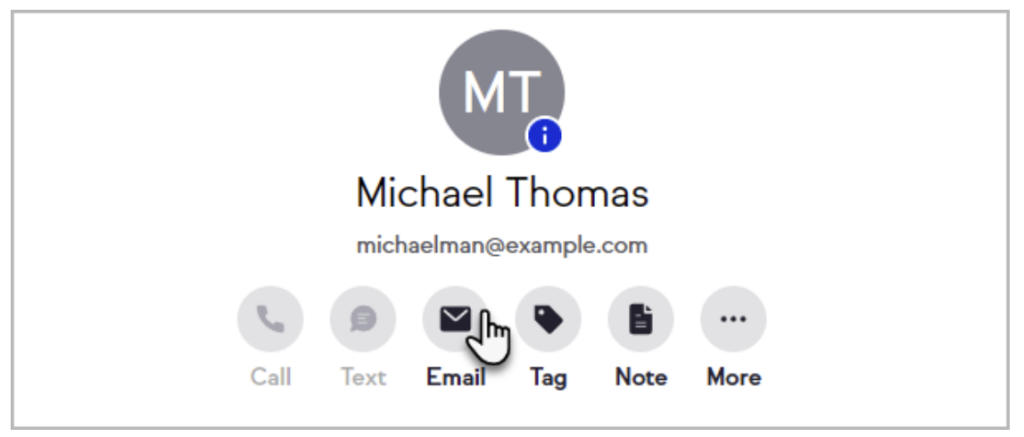
  3. From each Contact record (send a one-off email to a contact)

Send Email Broadcast from the Email Broadcast page

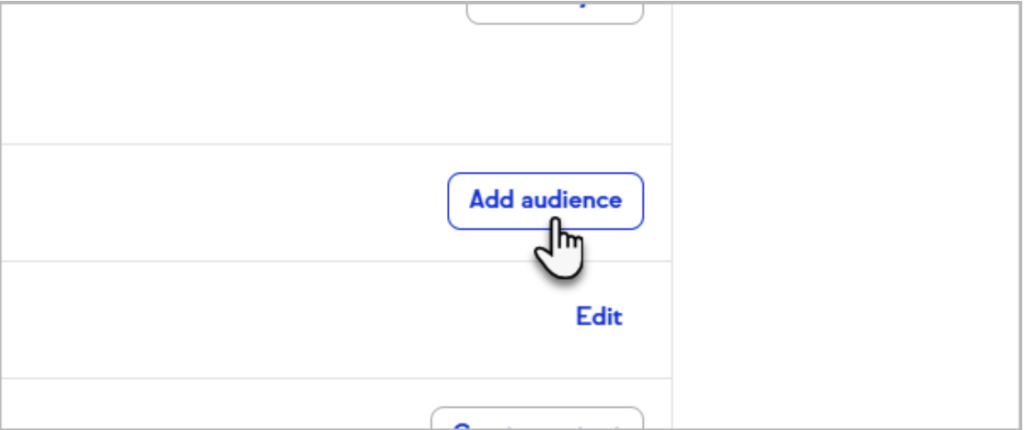
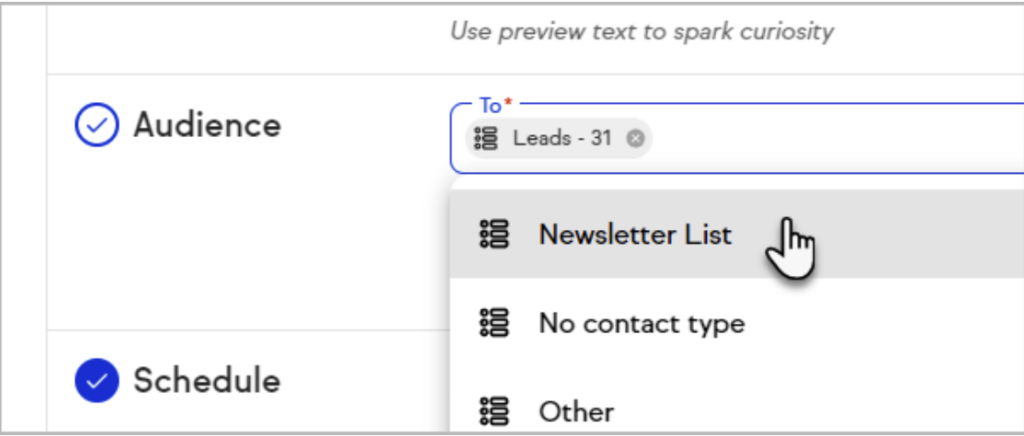
When you are building your email broadcast, one of the key steps is to select your audience.

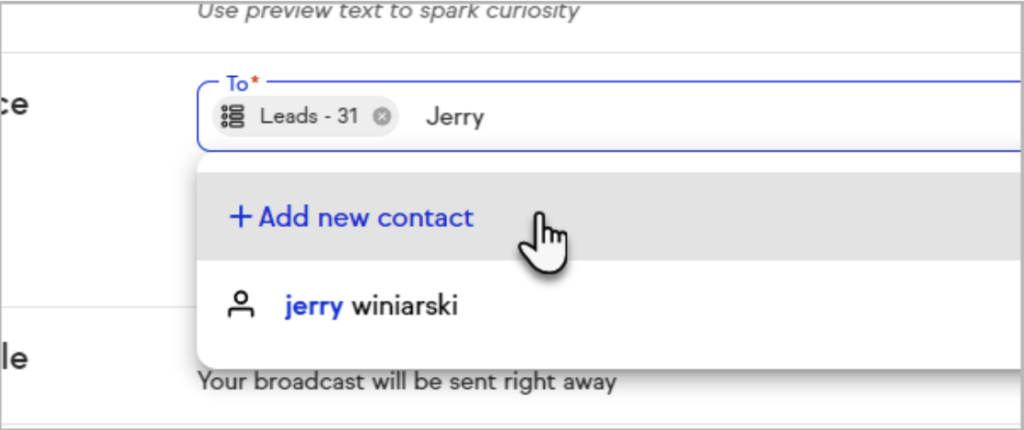
Select individual contacts, groups or tags for your broadcast’s audience. it really is quite flexible.

We highly recommend using Contact Groups. These are simply ‘saved filters’ allowing you to view a list of contacts who meet your saved search criteria. Then you can email all of those contacts in one step.


Send Email Broadcast from the Contacts Page

When you are viewing a list of your contacts (see Contact Records), you can select all or some contacts in your Contacts view.

First apply a Filter in your contacts view. Filter on contact fields, custom fields or tags.

Alternatively, select an existing Contact Group.

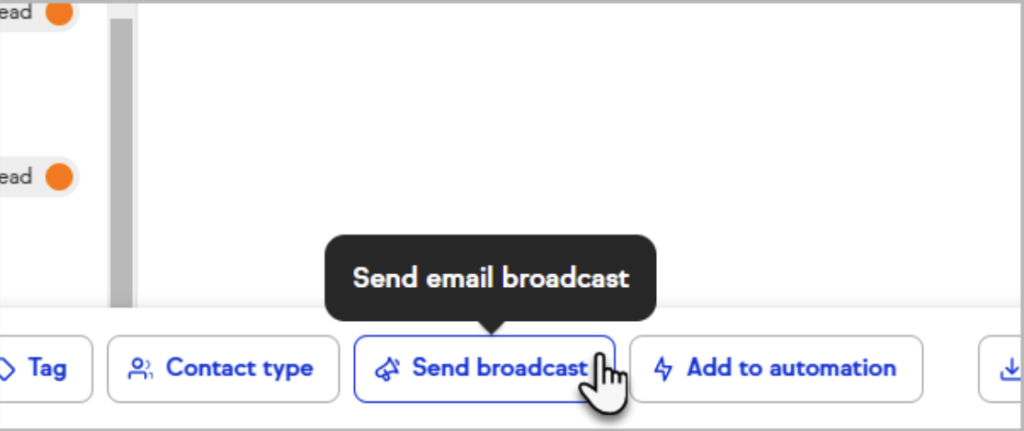
From the Contacts Page, click the Send Broadcast button in the bottom of the screen.

Follow the steps to set your subject, preview line and of course the email content. This is identical to the process to send an email broadcast from the Comms > Email Broadcast screen.

If you have not yet saved some email broadcast templates, get into that sooner rather than later. Once you have a few different styles of email broadcast templates for different marketing purposes, it will ave you a lot of time.


Send a one-off email to a Contact

Send customised emails directly from a contact record. Add attachments, sign off with your personalised signature, and use the rich text editor to format the email.

You can send emails from any email address associated with one of your Keap users. The email address that you see in the “From:” is the address that is on the user record that is selected in the dropdown.

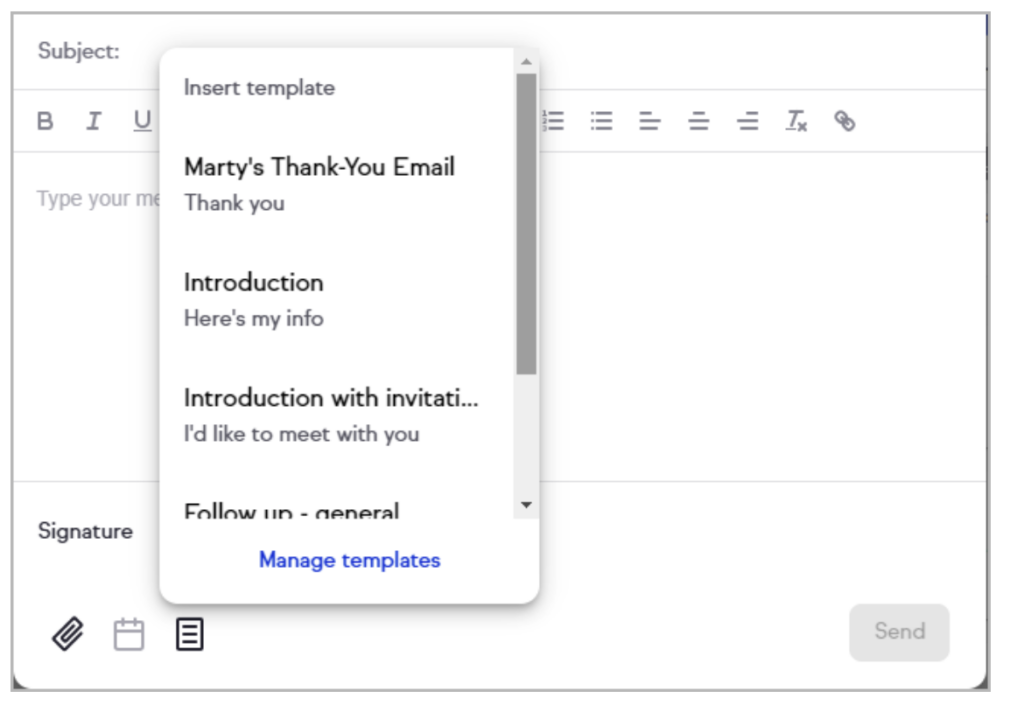
You can also edit, save, and easily insert email templates whenever you need them. This can save a great deal of time and effort to send common emails.